> For the complete documentation index, see [llms.txt](https://docs.petal.build/petal-pro-documentation/llms.txt). Markdown versions of documentation pages are available by appending `.md` to page URLs; this page is available as [Markdown](https://docs.petal.build/petal-pro-documentation/v1.8.0/recipes/how-to-apply-a-recipe-with-git-cherry-pick.md).
# How to apply a recipe with git cherry pick
[Cherry picking](https://www.atlassian.com/git/tutorials/cherry-pick) means to apply a specific git commit to your working copy. We have made a number of "recipes" that are basically git branches that are 1 commit long. This means you can easily apply them to your project by cherry picking them.
### Step 1 - Find the commit hash
To apply a commit we need to get its SHA, which is basically an ID for the commit. If you're proficient in git you can probably do this yourself in the terminal or whatever GUI you use. But here's how to do it in Github.
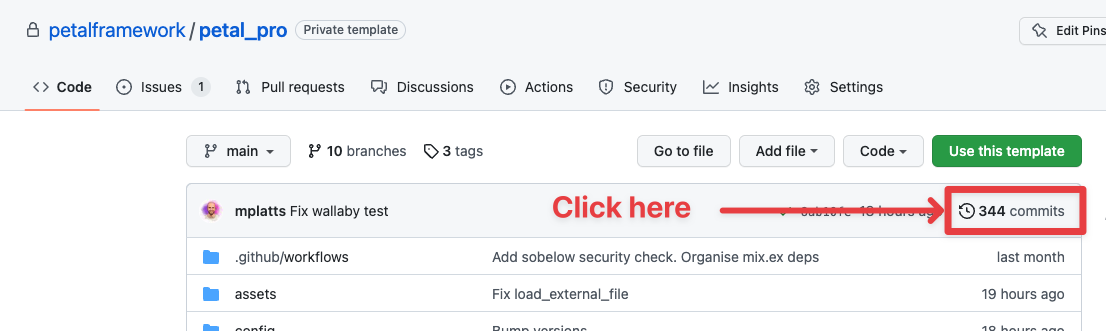
Firstly, go to the "Commits" page:
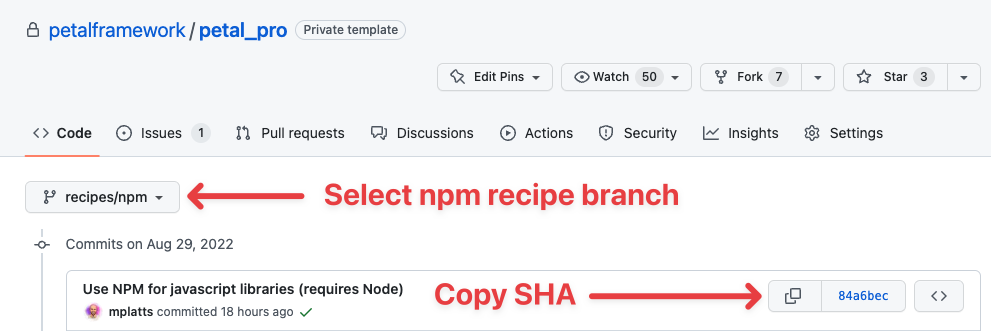
Then select the recipe branch, and copy the SHA of the latest commit on that branch.
### Step 2 - Ensure you have Petal Pro as a git remote
Git needs to be connected to our Github repository and have fetched the latest commits from it. That way, when you run the cherry-pick command, it can actually find the commit to apply.
If you cloned the `petal_pro` repo then you should be fine. Just run `git fetch`.
If you don't have `petal_pro` as a git remote (eg. you deleted `.git` and re-initialized it, or if you used Petal Pro as a template), then run this to re-attach it:
```
git remote add petal_pro git@github.com:petalframework/petal_pro.git
git fetch petal_pro
```
### Step 3 - Cherry pick
Now just run the `cherry-pick` command.
```
# This commits it to your project
git cherry-pick
# If you don't want to commit it, but just have the code sitting in your working directory
git cherry-pick --no-commit
```
The code from that commit should now be applied to your project.